
Backing up Outlook emails involves exporting your mailbox data to an Outlook Data File (.pst) for the classic desktop application, or using automated cloud synchronization and third-party tools for modern web-based and new Outlook iterations. This ensures protection against accidental deletion, server outages, and data corruption.
Email communication remains a cornerstone of professional and personal organization. Within the various iterations of Microsoft Outlook—ranging from the classic desktop client to the modern web application and the newer Windows versions—safeguarding critical correspondence, attachments, and calendar entries is essential. Hardware failures, accidental deletions, malicious cyberattacks, and migration between different computers or email providers can instantly compromise vital data if a reliable backup strategy is not in place.
Understanding how to back up Outlook emails requires recognizing that the correct method depends heavily on which version of the software you use. Microsoft has evolved its ecosystem significantly, resulting in distinct workflows for the classic Outlook desktop application, the new Outlook for Windows, Outlook on the web, and Mac environments.
Understanding Outlook Versions and Backup Feasibility
Before initiating any backup procedure, you must identify your specific version of Microsoft Outlook. The terminology, user interface, and underlying technical architecture differ widely across platforms. A technique designed for a local desktop installation will not function for a purely cloud-hosted mailbox or the streamlined web-based application.
The primary versions in active use include Outlook Classic (Desktop), which stores data locally in Personal Storage Table (.pst) or Offline Folder (.ost) files; Outlook for Windows (New), which mirrors web functionality and relies primarily on cloud synchronization; Outlook on the Web (OWA), which operates entirely in the browser; and Outlook for Mac, which utilizes specific archive formats.
Knowing your environment prevents wasted effort and ensures that the backup you create actually captures the precise data folders, contacts, and calendar items you need to preserve.
Method 1: Exporting Emails in Classic Outlook (Desktop)
For users running the classic desktop version of Outlook (part of Microsoft 365, Office 2021, Office 2019, or earlier suites), the native Import/Export wizard provides a direct way to save your mailbox data into a portable .pst file.
Prerequisites and Preparation
- Administrative access to your computer's local storage drives.
- Sufficient free disk space to accommodate your total mailbox volume, including all attachments.
- A healthy, up-to-date installation of Outlook running without active synchronization errors.
Step-by-Step Export Instructions
- Open Outlook and click File in the upper-left corner.
- Select Open & Export from the left-hand menu, then click Import/Export.
- In the Import and Export Wizard dialog box, select Export to a file and click Next.
- Choose Outlook Data File (.pst) and click Next.
- Select the mail folder you want to back up. To back up your entire mailbox, click the top root folder (your email address) and ensure the Include subfolders checkbox is checked. Click Next.
- Click Browse to choose the destination folder on your computer or an external storage drive where you want to save the backup file. Provide a descriptive file name.
- Click Finish. If prompted to create an optional password for the backup file, you can enter one or leave the fields blank, then click OK.

Method 2: Backing Up the New Outlook for Windows and Web
The new Outlook for Windows and Outlook on the Web do not feature the traditional local .pst export wizard because they are designed around a cloud-first architecture where data resides on Microsoft's servers. Protecting these emails requires alternative strategies.
Utilizing Microsoft 365 Cloud Redundancy
Because mailboxes in the new Outlook and web clients sync directly with Exchange Online, your emails are inherently backed up in the cloud. However, this does not protect against accidental permanent deletion or compromise of your Microsoft account credentials.
Downloading Individual Messages (.eml Format)
To back up specific, critical emails from the web or new Outlook interface:
- Open the message you wish to save.
- Click the three-dot menu icon (More actions) within the reading pane.
- Select Download to save the email as an .eml file directly to your local computer downloads folder, from which you can archive it onto external media or network-attached storage.
Method 3: Backing Up Outlook for Mac
Mac users operating Outlook for Mac manage data structures differently from Windows counterparts. While modern versions of Outlook for Mac rely on cloud sync for Microsoft 365 accounts, local archives utilize Outlook for Mac Archive (.olm) files.
Step-by-Step .olm Export Process
- Open Outlook for Mac.
- Navigate to the Tools tab on the top ribbon.
- Click Export.
- Check the boxes next to the items you want to back up (Mail, Calendar, Contacts, Tasks, Notes).
- Click Continue.
- Select the destination folder on your Mac where the archive file should be saved, and click Save.
- Once the export completes, click Finish. You can then move this .olm file to an external drive or cloud storage provider for safekeeping.
Comparison of Outlook Backup Methods
To determine the best approach for your specific setup, review the technical differences, storage requirements, and limitations of each backup mechanism outlined below.
| Method | Compatible Versions | Data Format | Storage Location | Best Use Case |
|---|---|---|---|---|
| Export to .pst | Classic Outlook Desktop | .pst | Local Drive / External Media | Comprehensive local offline archiving and PC migration. |
| Export to .olm | Outlook for Mac | .olm | Local Mac Drive | Backing up Mac-based mailboxes and local folders. |
| Cloud Sync | New Outlook & Web | Cloud DB | Microsoft Servers | Automatic continuous availability across devices. |
| Manual .eml Download | New Outlook & Web | .eml | Local Downloads Folder | Preserving individual high-value legal or financial messages. |
Automating and Scheduling Outlook Backups
Relying entirely on manual exports leaves gaps in your data protection strategy. If you use Classic Outlook, you can streamline the process or utilize Microsoft's official AutoArchive feature to move older items automatically to a separate backup file at regular intervals.
Configuring AutoArchive
- In Classic Outlook, go to File > Options > Advanced.
- Under the AutoArchive section, click AutoArchive Settings.
- Specify how frequently you want to run AutoArchive (e.g., every 14 days).
- Configure options for moving old items, permanently deleting old items, or saving them to a designated archive file path.
- Click Apply and OK.
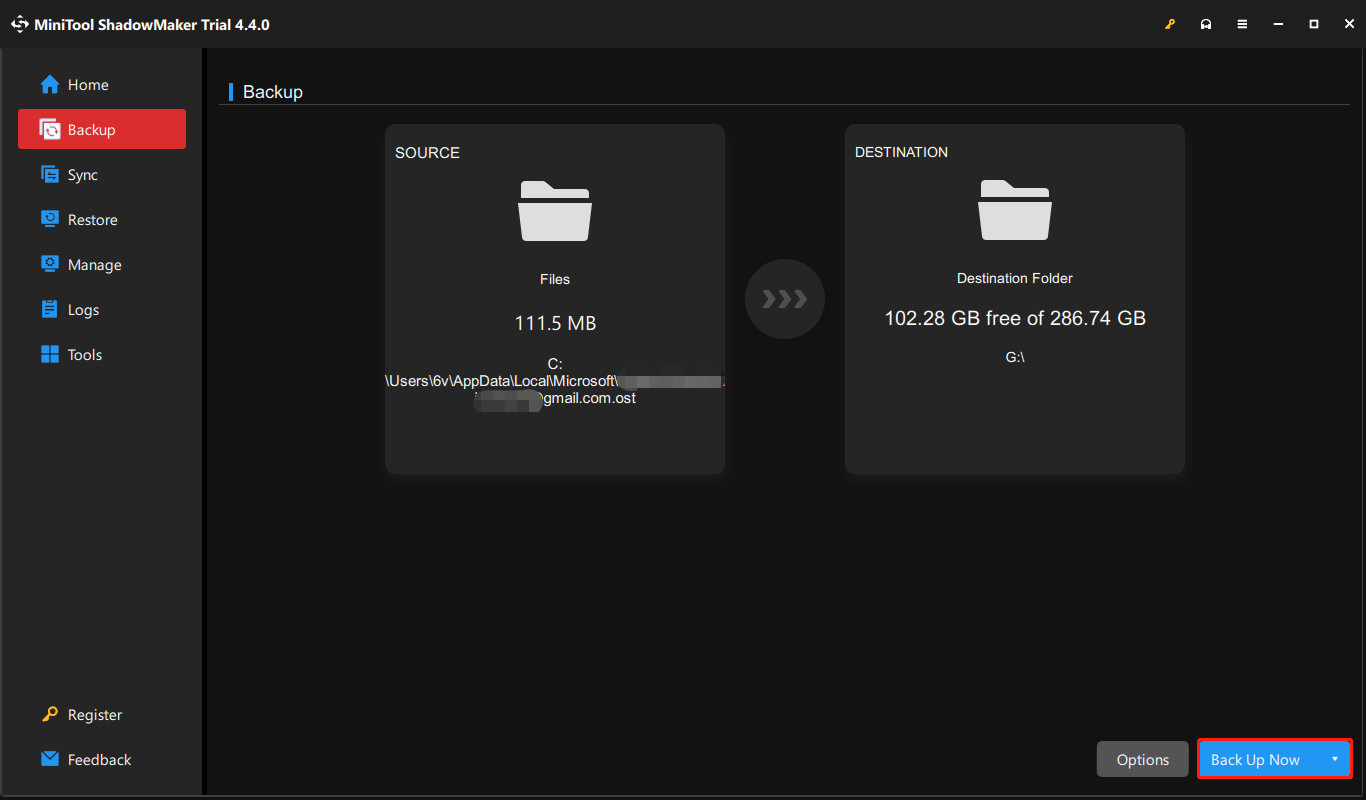
For absolute security, pair manual .pst exports or AutoArchive settings with third-party local backup software or automated operating system backup utilities like Windows Backup or Apple Time Machine, ensuring that your local Outlook data files are captured alongside your documents and system settings.
Restoring Emails from a Backup File
Creating a backup is only half the process; you must also know how to recover your data should an emergency occur.
Restoring a .pst File in Classic Outlook
- Open Classic Outlook and go to File > Open & Export > Import/Export.
- Select Import from another program or file and click Next.
- Choose Outlook Data File (.pst) and click Next.
- Browse to select your saved backup .pst file. Choose your preferred option regarding duplicate items (e.g., Allow duplicates to be created) and click Next.
- Select the specific folder you wish to import, or select the top root folder to restore the entire mailbox. Ensure Include subfolders is checked.
- Select Import items into the current folder or Import items into the same folder in, then choose your active email account from the dropdown menu. Click Finish.
Common Mistakes and Troubleshooting
Backing up email data can occasionally present technical hurdles. Avoid these frequent pitfalls to ensure your archives remain functional:
- Backing up active .pst files directly from the installation directory while Outlook is running: Always use the built-in Export wizard rather than copying locked .pst files from
AppData, which can result in file corruption. - Ignoring file size limits: Large .pst files exceeding 50 GB are prone to performance degradation and corruption. Split large mailboxes into multiple smaller archive files if necessary.
- Neglecting password management: If you apply a password to your backup .pst file, store that password securely in a password manager. Outlook provides no mechanism to recover data from an encrypted .pst file if the password is lost.
- Assuming web backups happen automatically: Remember that deleting an email in the cloud-connected new Outlook web client removes it across all synced devices; cloud synchronization is not a static point-in-time backup.
Frequently Asked Questions
Can I back up Outlook emails without opening the application?
For Classic Outlook, you cannot safely export a live .pst file while the application is shut down using export wizards, but you can copy closed archive .pst files stored outside the active application profile directory. For cloud-based versions, server-side data is managed entirely by Microsoft's infrastructure.
How often should I back up my Outlook emails?
The ideal backup frequency depends on your email volume. Professionals who handle high-stakes daily correspondence should perform manual or automated backups weekly or bi-weekly, while casual users can maintain monthly archival schedules.
Will backing up my emails delete them from my inbox?
No. Standard export procedures create a duplicate copy of your emails in the destination file (.pst or .olm) while leaving the original messages intact within your active mailbox folders.
What is the difference between an .ost file and a .pst file?
An .ost (Offline Outlook Data File) is a synchronized local cache used by Exchange, IMAP, or Outlook.com accounts, allowing offline access. A .pst (Personal Storage Table) file is a standalone, portable archive file that exists independently of the mail server and is controlled entirely by the user.
Can I view a backup .pst file on a Mac?
Native versions of Outlook for Mac cannot open Windows .pst files directly. You must first convert the .pst file using third-party conversion software or import it into a Windows-based Outlook client before migrating the resulting data to your Mac.
Final Recommendations
Securing your correspondence requires matching your backup technique to your specific Outlook environment. If you utilize the classic desktop client, schedule regular .pst exports and maintain copies on secure external drives or encrypted cloud storage. If you rely on the new Outlook or web interface, leverage Microsoft's cloud redundancy while selectively downloading mission-critical files manually. Test your restoration procedure periodically to ensure your archives are fully accessible when you need them most.
Image Gallery
Select an image to open it in a new tab.

Gemma Collins
Arts and Pedagogy Writer
